
Black Friday WooCommerce Checklist: 6 Things to Check
Share
In this article
Black Friday is on 27 November this year, with Cyber Monday right after on 30 November. For many online stores it's the busiest weekend of the year, which also makes it the worst time for something to break. A slow product page or a checkout error costs you little on a quiet Tuesday. On Black Friday it costs you real sales.
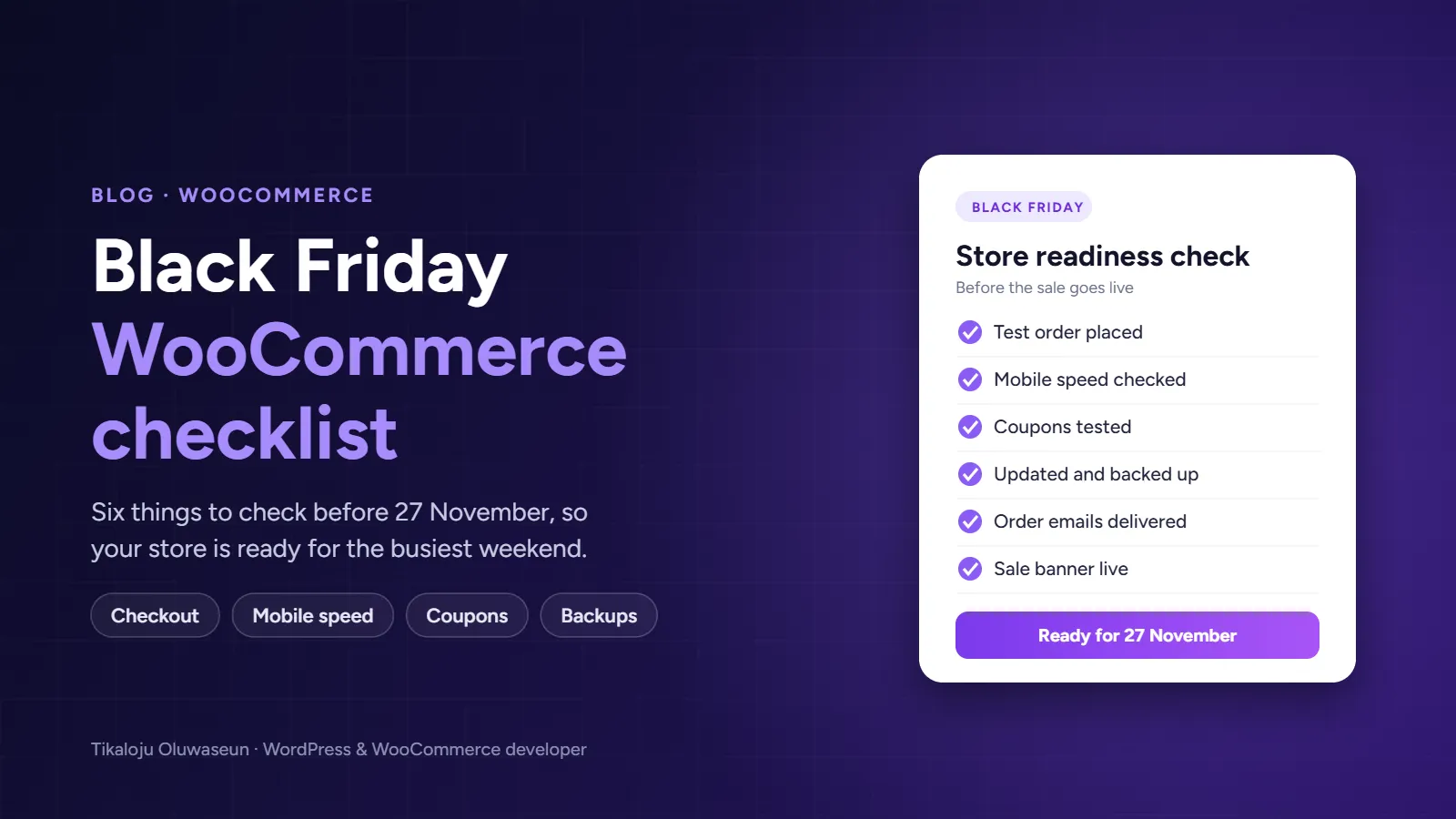
Here are six things to check on your WooCommerce store this week, while there's still time to fix them.
1. Place a real test order
Go through your store the way a customer would: find a product, add it to the cart, apply a coupon and pay. Do it on your phone as well as your laptop. Then check that the order shows up in WooCommerce, the confirmation email arrives and the stock level goes down.
Test every payment method you offer. If a payment plugin has an expired key or a connection that has stopped working, you want to find out now, not from an unhappy customer on Friday.
2. Check your speed on mobile
Most Black Friday shoppers browse on their phones, and they won't wait for a slow page. Run your homepage, one product page and your cart page through Google PageSpeed Insights and look at the mobile score first.
The usual fixes are:
Compress and resize large product images
Set up page caching, but exclude the cart, checkout and My Account pages
Remove plugins you no longer use
Check that your hosting plan can handle more visitors than usual
3. Test your coupons and sale prices
Set up your Black Friday discounts ahead of time and schedule the sale dates, so you aren't editing prices live on the day. Then test each coupon in the cart. Does it apply to the right products? Does it respect any minimum spend? Does it stop working when the sale ends? A coupon that takes 50% off everything by mistake is an expensive surprise.
4. Update first, then back up
Update WordPress, your theme and your plugins a few days before the sale, not on the morning of it, and test the store after updating. Then take a full backup and keep a copy off your server, so you can restore quickly if anything goes wrong over the weekend.
Once the sale starts, avoid making big changes to the site.
5. Make sure your emails get delivered
Order confirmations, password resets and shipping updates all depend on your site's email working. Many WordPress sites send email straight from the server, and those messages often end up in spam. Use an SMTP plugin connected to a proper email service, then place a test order and check that the email arrives.
6. Make your offer easy to see
Shoppers should know about your sale the moment they land on your site. Add a clear banner or announcement bar with the discount and the end date, link it straight to the sale products, and check that it looks right on mobile. If you're running ads, send that traffic to a focused landing page instead of your homepage.
Want someone to check your store for you?
I fix slow and broken WooCommerce stores: checkout errors, payment problems, slow pages, plugin conflicts and broken Elementor layouts. You get a clear diagnosis, a quick turnaround and a short report of what was changed.
See my WordPress fixes and speed optimisation service
Setting up a new store? See my WooCommerce store setup service
Or send me a message with your store link and I'll tell you what needs attention before Black Friday.